Understanding Linux: The Beginners Guide

Linux can feel intimidating when you first encounter it, especially if you’re coming from Windows or macOS. But once you understand its foundations, Linux becomes one of the most powerful, flexible, and rewarding operating systems you can use. This guide walks you through the essentials, it covers important aspect like: what Linux is, how it works, how commands travel, and how to navigate the file system with confidence. WHAT IS LINUX? Linux is an open-source operating system (OS). This means that its source code is freely available for anyone to view, modify, and distribute. It powers everything from smartphones (Android) to supercomputers, servers, cloud platforms, and even smart home devices. At its core, Linux is built around the Linux kernel, the central component that manages hardware, memory, processes, and system resources. Everything else including desktop environments, utilities, and  applications are built on top of this kernel. How Does Linux Works? In simple terms, think of Linux as a layered system: 1. Hardware: Your CPU, RAM, storage, network card, etc. 2. Kernel: The “brain” that communicates between hardware and software. 3. Shell: The interface that interprets your commands. 4. Applications: Tools like browsers, editors, and utilities. When you type a command, the shell interprets it, the kernel executes it, and the hardware performs the action. WHAT IS A LINUX DISTRIBUTION? A Linux distribution (distro) is a packaged version of Linux that includes: – The Linux kernel – System utilities – A package manager – Optional desktop environments – Preinstalled applications link: Linux Distributions Timeline Different distros serve different purposes: Distribution | Best For Ubuntu         | Beginners, desktops, servers Fedora          | Developers, cutting-edge features Debian          | Stability, servers Kali Linux    | Security testing CentOS / Rocky | Enterprise environments Each distro uses the same kernel but bundles different tools and philosophies. CONSOLE VS TERMINAL VS SHELL These three terms often confuse beginners, so let’s break them down. Console A console is the physical or virtual interface that allows you to interact with the system. In early Linux systems, this was a physical monitor + keyboard Today, it can also be a virtual console – Console Terminal A terminal emulator is a software application that opens a window where you can type commands. Examples: GNOME Terminal, Konsole, and xTerm. Terminal Shell The shell is the program that interprets your commands. Common shells include: – Borne again shell -Bash (most popular) – Z shell – Zsh – Fish – Borne Shell – Sh So: Console = physical/virtual interface Terminal = window Shell = command interpreter LINUS COMMAND SYNTAX: COMMAND, OPTIONS, AND ARGUMENTS Linux commands follow a predictable structure: command [options] [arguments] 1. Command: The program you want to run. Example: ‘ls’ – Lists files in a directory. 2. Options: Modify how the command behaves. options usually start with – or –. Example: ‘ls -l’ – Shows files in long format. 3. Arguments: The target of the command. Example: ‘ls -l /home’ – ls → command – -l → option – /home → argument Another example: ‘cp file.txt /home/user/’ – Copies file.txt to /home/user/. How a Linux Command Travels (Behind the Scenes) When you type a command: 1. You type it in the terminal. 2. The shell reads and interprets it. 3. The shell checks: Is it a built-in command? or Is it an executable in your PATH? 4. The shell passes the request to the kernel. 5. The kernel interacts with hardware or system resources. 6. Output is returned to the shell. 7. The terminal displays the result. This pipeline is what makes Linux incredibly efficient and modular. Understanding the Linux File System Hierarchy Linux uses a single-rooted file system that starts at / (the root directory). Here’s a simplified hierarchy: ├── bin → Essential user commands ├── boot → Boot loader files ├── dev → Device files ├── etc → System configuration ├── home → User home directories ├── lib → Shared libraries ├── media → External drives ├── mnt → Temporary mounts ├── opt → Optional software ├── root → Root user’s home ├── sbin → System admin commands ├── tmp → Temporary files ├── usr → User programs └── var → Logs, spool files It is important to note that everything in Linux is a file even hardware devices. Conclusion Linux rewards curiosity. The more you explore commands, the file system, and the shell, the more powerful you become. This beginner’s guide gives you the foundation. However,  the real learning begins when you start experimenting.

Understanding Linux: The Beginners Guide Read More »

screenshot 2025 12 10 144430

Role-Based Access Control

Role-Based Access Control (RBAC) is a security model that restricts system access based on a user’s role within an organization. Instead of assigning permissions to individuals, RBAC assigns them to roles, and users are granted roles according to their responsibilities. This simplifies management, enhances security, and ensures users only access resources necessary for their job. Key components include:  Roles: Defined sets of permissions (e.g., admin, editor, viewer) Users: Assigned one or more roles Permissions: Actions allowed on resources (e.g., read, write, delete)  RBAC is widely used in enterprise systems, cloud platforms, and applications to enforce least privilege and streamline access control.  Creating a Custom Role in Microsoft Entra Admin Center  Sign-in to Microsoft Entra Admin center with Admin Credential Go to Roles and Admins under Entra ID  Add new custom Roles  Add the Role Name and Description under BASIC  Either start from scratch or clone from a custom role (template)  Click Next  Assign Permissions for the custom role (We have assigned only one permission for this custom role)  Click on Next  Review and create. Adding Assignment to the Custom Role  Go to all roles  Search and click on the custom role Add Assignment  Search and select the User or group you want to assign the custom role Click on Next after selecting the user   Under Settings  Select assignment type – Eligible or Active  Assign.  Confirm custom role Assignment  Go to Entra ID users  Search and select the User the custom role was assigned to.  Click on Assigned roles  Select Eligible assignments  Confirm the user have the assigned role.  Conclusion  In conclusion, Role-Based Access Control (RBAC) is essential for enforcing the principle of least privilege, reducing security risks, and simplifying access management across systems. Setting up a custom role allows for fine-tuned control tailored to specific operational needs, ensuring users have exactly the access they require, no more and no less. This flexibility strengthens security posture while supporting productivity and compliance.   

Role-Based Access Control Read More »

screenshot 2025 12 10 112330

Certifications and Why The Matter

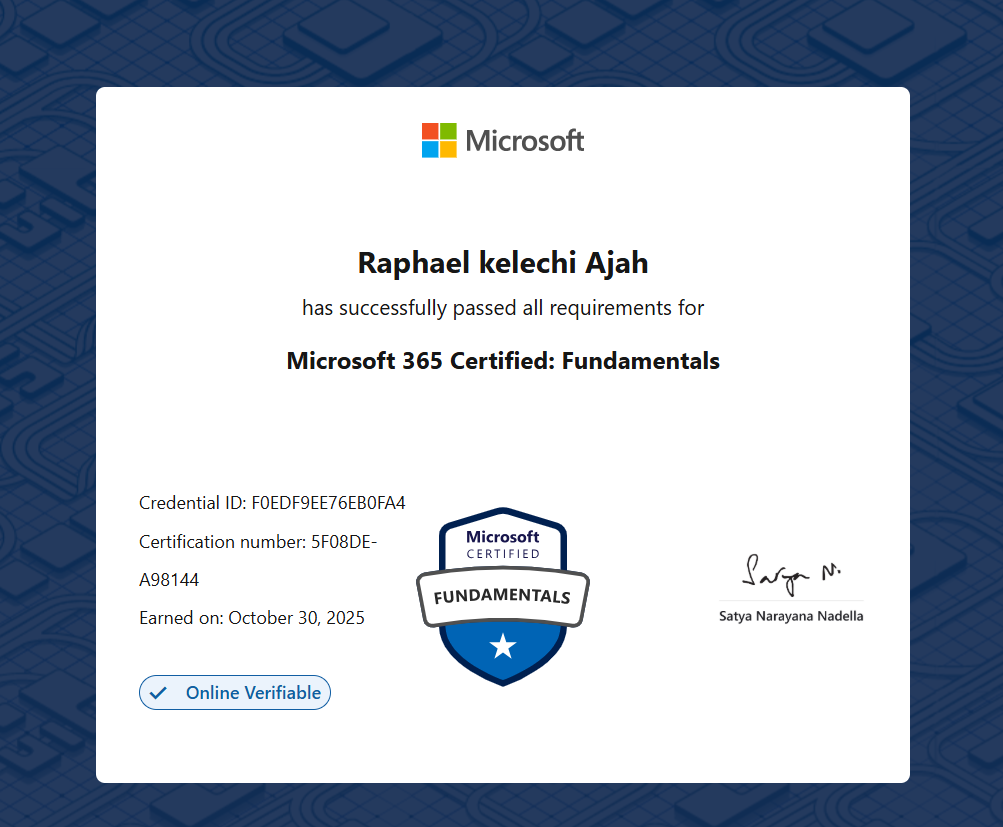
In today’s tech-driven world, credentials aren’t just decorative, they offer direction. They tell a story about where you’ve been, what you’ve mastered, and where you’re headed. They clarify your strengths, signal trust to employers, and guide your next steps. For aspiring cloud professionals, Microsoft certifications, in particular, offer a structured, globally respected way to prove real skills across cloud, productivity, AI and accelerate your career. Examples of Microsoft Microsoft Certification Microsoft Certified: Azure Fundamentals certificate Azure fundamentals (AZ-900): Validates core cloud concepts, Azure services, pricing, security, and governance. This certification is perfect for your first step into cloud.     Microsoft 365 Certified: Fundamentals certificate Microsoft 365 fundamentals (MS-900): This certification covers productivity services (Teams, SharePoint, Exchange), licensing, security, and compliance. This is also an entry level certification, perfect for beginners. Career Essentials in Generative AI certificate Career essentials in generative AI (Microsoft + LinkedIn): This is a learning path introducing Copilot, generative AI foundations, and responsible AI practices. This certification will expose beginners to AI and prompt engineering. Why these certifications matter Credibility with employers: Microsoft credentials are standardized, verifiable, and recognized across industries. Clear learning paths: Each cert maps to specific outcomes—fundamentals for breadth, role-based for depth. Career mobility: Opens doors in cloud administration, security operations, data analytics, and governance. Signal for responsibility and trust: Pairing cloud and AI learning (including responsible AI) shows maturity and readiness for enterprise contexts Beginner roadmap to Microsoft certification 1. Choose a fundamentals start point Azure fundamentals (AZ-900): If you’re aiming for cloud, infrastructure, security, or data. Microsoft 365 fundamentals (MS-900): If you’re focused on productivity, collaboration, licensing, and compliance. 2. Learn with official resources Microsoft Learn: Free, modular content with sandboxes and knowledge checks. LinkedIn Learning: Guided courses with practical demos; career essentials in generative AI is a strong complement. 3. Practice with intent Hands-on labs: Spin up a free Azure trial; create and secure basic resources; explore cost calculators. Scenario drills: Write short “how I’d solve it” notes (e.g., secure a workload, set M365 policies, optimize costs). Mock tests: Use practice exams to identify weak areas, then revisit Learn modules to close gaps. 4. Book and sit the exam Schedule when your practice scores stabilize. Aim for short, focused study sprints (45–60 minutes) over several days rather than cramming. Before the exam: review key concepts, service trade-offs, pricing, security, and governance models. 5. Share and stack your credentials Post to LinkedIn with a concise takeaway (what you learned and where you’re applying it). Align your next step to a role-based cert: Azure administrator associate (AZ-104) for cloud ops. Security operations analyst (SC-200) for SOC and threat detection. Power BI data analyst (PL-300) for enterprise analytics. Connect learning to outcomes (e.g., governance in OneLake, Copilot enablement, M365 security baselines). Certifications are a smart way to turn intent into credibility. Start with fundamentals, practice hands-on, and build toward role-based paths that match the impact you want. The combination of Azure, Microsoft 365, and AI learning creates a strong foundation for enterprise roles in cloud, security, analytics, and governance. Thank you for reading. If you enjoy reading about tech, please subscribe to our newsletter to be notified every time we make a new post.

Certifications and Why The Matter Read More »